You pressed the brake. Nothing. You tapped the screen. Nothing. The car that worked an hour ago is a silent box in a parking lot. Before you escalate to a tow, work through this list. Seven causes cover almost every Tesla won’t start call we get in the Bay Area, and four of them you can solve in under five minutes without tools.
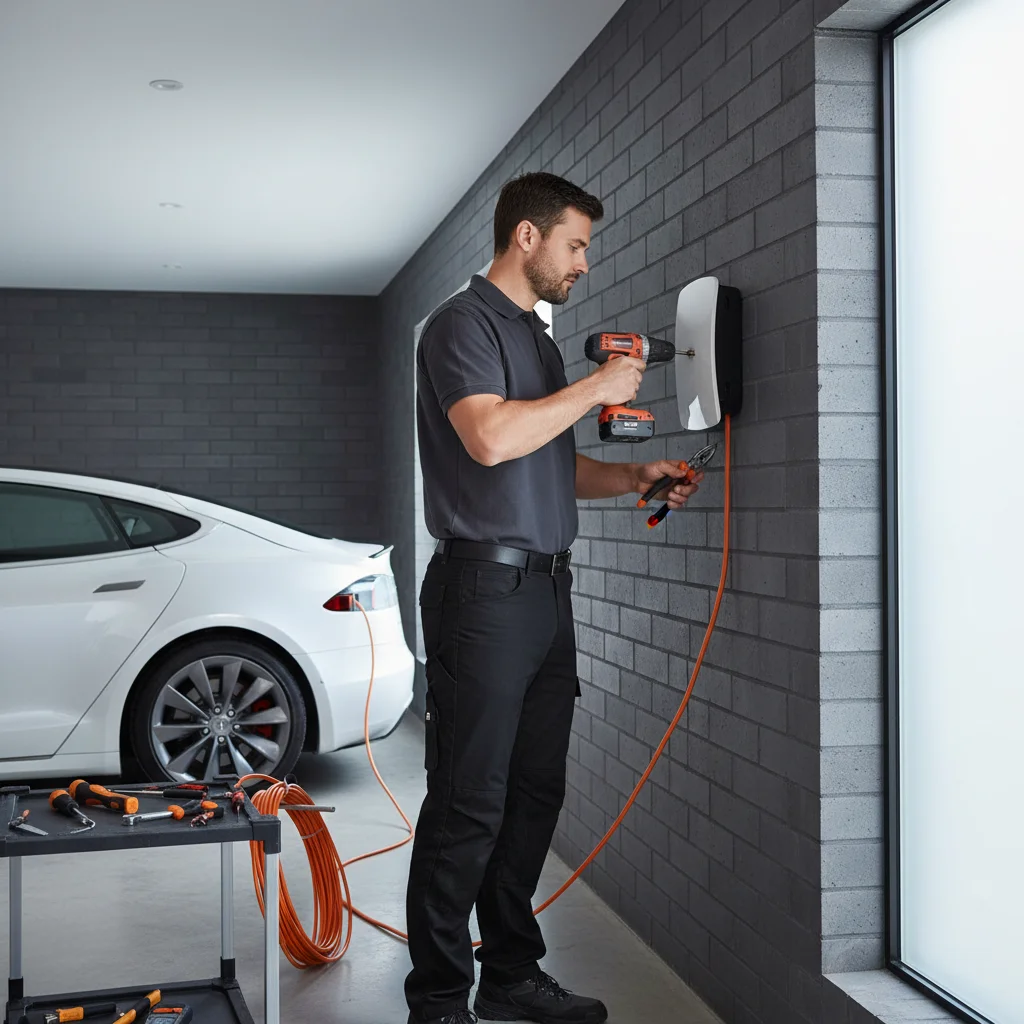
Read through the whole list first. Then work it top to bottom.
1. Dead 12V battery (the most common cause by a wide margin)
If the door handles are not presenting, the screen is black, and the Tesla app says “vehicle offline,” you are almost certainly looking at a dead 12V. This is the first thing to rule out because the fix is specific and fast.
Confirm it:
- Door handles do not auto-present.
- Screen is black through the windshield.
- Turn signals and interior lights do not respond.
- Frunk will not release from the app.
Fix it: Jump the 12V from the tow-eye access terminals on Model 3 and Y, or from the front fascia on older S and X. Use a lithium jump pack, never another car. Full step-by-step in our Tesla 12V battery dead diagnosis guide.
If the car wakes up and stays on, drive it to a Supercharger or plug in at home for an hour. That lets the DC-DC converter top the 12V off properly.
2. PIN to Drive lockout
If the car powers on, the screen works, and the shifter is live, but the car asks for a PIN and you do not have it, you have got PIN to Drive enabled.
Confirm it: Screen shows a PIN entry keypad. Four-digit code.
Fix it: Enter the PIN. If you do not remember it, you have three options:
- Phone app. Settings, Safety, Security, PIN to Drive. If the car is online, you can reset it from another logged-in device.
- Tesla account website. Same settings path.
- Tesla service. If you are locked out of the account too, that is a service call with proof of ownership.
This is not something we or any third party can bypass. By design.
3. Valet mode left on
Valet mode caps speed, locks the frunk and glovebox, and blocks access to several features. If someone (you, a spouse, a parking attendant) turned it on and forgot, the car behaves strangely but never fully “won’t start.”
Confirm it: You can drive, but cannot go above 70 mph. The frunk will not open. Home address is hidden.
Fix it: From the screen, tap the driver profile icon, then Valet. Enter the PIN you set. Most people set the last four of their phone or card, try that first.
4. Main pack empty (but you did not notice)
If the last time you charged, the car sat at 18 percent and you drove to work and parked in Sentry for eight hours, you can come back to a car that simply has no energy left. The traction pack might be below the zero on the dash, the software will not let it go to true zero, but it will refuse to drive.
Confirm it: Screen comes on. Displays “Unable to drive, plug in vehicle.” Range reads zero, or nothing.
Fix it: Plug in. Any Level 1 or Level 2 charger. Within 20 minutes the car will allow limited driving again. If you are not near a charger, this is when we send an operator.
5. Parking brake stuck
Rare, but possible after a cold night on a Coastside block or a long sit. The electronic parking brake does not release when you press the brake and select Drive. The car sits.
Confirm it: Screen shows a red brake warning. You hear a click when shifting but the car will not roll.
Fix it:
- Shift to Park.
- Press and hold the button on the end of the right-side stalk for 3 to 5 seconds. This is the manual parking brake toggle on Model 3 and Y.
- On refreshed S and X with no stalks, use the screen control (Controls, Safety, Parking Brake).
- Shift to Drive again.
If it still will not release, there is a calipers-stuck-to-rotor issue, often rust from humid weather after a week of sitting. A short drive usually frees it once you release it manually.
6. Firmware update stuck
Teslas push updates in the background. If an update partly installed and then ran out of juice, the car can get into a weird intermediate state.
Confirm it: Screen shows a progress bar that has not moved in 30-plus minutes, or an update error.
Fix it: Soft reboot. Press and hold both scroll wheels on the steering wheel for 10 seconds. Screen goes black. Wait. It comes back. If it does not, hold the brake and both scroll wheels simultaneously for 10-plus seconds for a full reset.
If that does not work, Tesla service can push a recovery. That is a service appointment, not a mobile job.
Do not force a firmware recovery. Do not open the passenger kick panel, pull fuses, or disconnect the 12V during a firmware update attempt. You can brick an MCU that would have recovered on its own. Let it sit 30 minutes after a reboot before escalating.
7. Charge cable stuck in the port
If you tried to drive off without unplugging, the car refuses to move. Sometimes the release command from the app or the car fails and the cable physically locks in place.
Confirm it: Charge port light is on. Cable connector is in the port. Car reads “unplug to drive.”
Fix it: Most cases, tap the charge port release button on the connector itself (Tesla Mobile Connector, Wall Connector, Supercharger). If the car-side latch is stuck, there is a manual release cable inside the trunk on Model 3 and Y, behind a small access panel on the passenger side trim. For Model S and X, it is in the taillight compartment. Full step-by-step in our EV charge port won’t release guide.
Quick diagnostic table
| Symptom | Likely cause | Fix time |
|---|---|---|
| Screen black, handles flush | Dead 12V | 10 to 20 min |
| PIN keypad on screen | PIN to Drive | 1 min |
| Cannot go over 70 mph, frunk locked | Valet mode | 1 min |
| ”Unable to drive, plug in” | Empty pack | 20 to 90 min (charge needed) |
| Red brake warning, will not roll | Stuck parking brake | 2 to 5 min |
| Frozen progress bar | Firmware hang | 10 to 30 min |
| ”Unplug to drive” message | Cable stuck | 2 to 10 min |
When to stop troubleshooting and call
Call (415) 630-6268 if:
- You have confirmed a dead 12V but do not have a jump pack.
- The car woke up but will not hold voltage (dies again in under an hour).
- You see smoke, burning smells, or an orange high-voltage warning triangle.
- The pack is at zero and you have no charger in walking distance.
An operator comes out with lithium jump packs, a long NACS charging cable, and common replacement 12V stock on the truck. Urban San Francisco, Oakland, and Berkeley are a short run for most operators; the Coastside and East Contra Costa and the Delta take longer.
Browse our Tesla roadside rescue service page for the full coverage map.
Not starting right now? Call (415) 630-6268 and we will triage on the phone and dispatch if needed.